Up my Pi-hole
This is not my first rodeo, this is the second (or third) time I set up the very lovely Pi-Hole solution. Why? We want to block trackers, ads and malicious domain to protect our clients and speed up the network (since clients won’t have to connect and load all content) as shown in smarthomebeginner.com. 
We see 84 requests (a reduction of 46%), 3.19 MB transferred (a reduction of 36%), and took 16.37 seconds (a reduction of 30%).
Installation
We will use the GitHub doc to get some help along the way.
Docker
We will setup the Raspberry with Docker compose since this is easy and flexible. Let’s copy the default file and modify it to out wishes.
wget https://github.com/pi-hole/docker-pi-hole/raw/master/examples/docker-compose.yml.example
services:
  pihole:
    container_name: pihole
    image: pihole/pihole:dev
    ports:
      - "53:53/tcp"
      - "53:53/udp"
      - "8080:80/tcp"
    environment:
      TZ: 'Europe/Oslo'
      WEBPASSWORD: ${WEBPASSWORD}
      PIHOLE_DNS_: 1.1.1.1;8.8.8.8
      WEBTHEME: default-dark
    volumes:
      - './etc-pihole:/etc/pihole'
      - './etc-dnsmasq.d:/etc/dnsmasq.d'
    cap_add:
      - NET_ADMIN
    restart: unless-stopped
I did some modifications to it:
- HTTP port 8080
- Using the
:devimage due to some issues with the latest regular version. - Changed timezone
- Set the password to an env variable
- Dark theme, you know it.
- Upstreams DNS servers, Cloudflare is fast as f so we’ll go with that as primary while keeping Google there as well. Being an old Cisco admin, we might pop over to OpenDNS / Umbrella after a while.
We don’t want any plain text passwords in the yml file since we might mistakenly commit it, or otherwise leak it so we will create a .env file
echo "WEBPASSWORD=secretpassword" > .env
chmod 600 .env
Start the container with docker compose up -d and set the service to boot on startup with sudo systemctl enable docker
Access the web interface
I’ll add pi.hole to the /etc/hosts file to be able to resolve it (we probably won’t need it once we start actually using the the Pi-Hole as a DNS server).
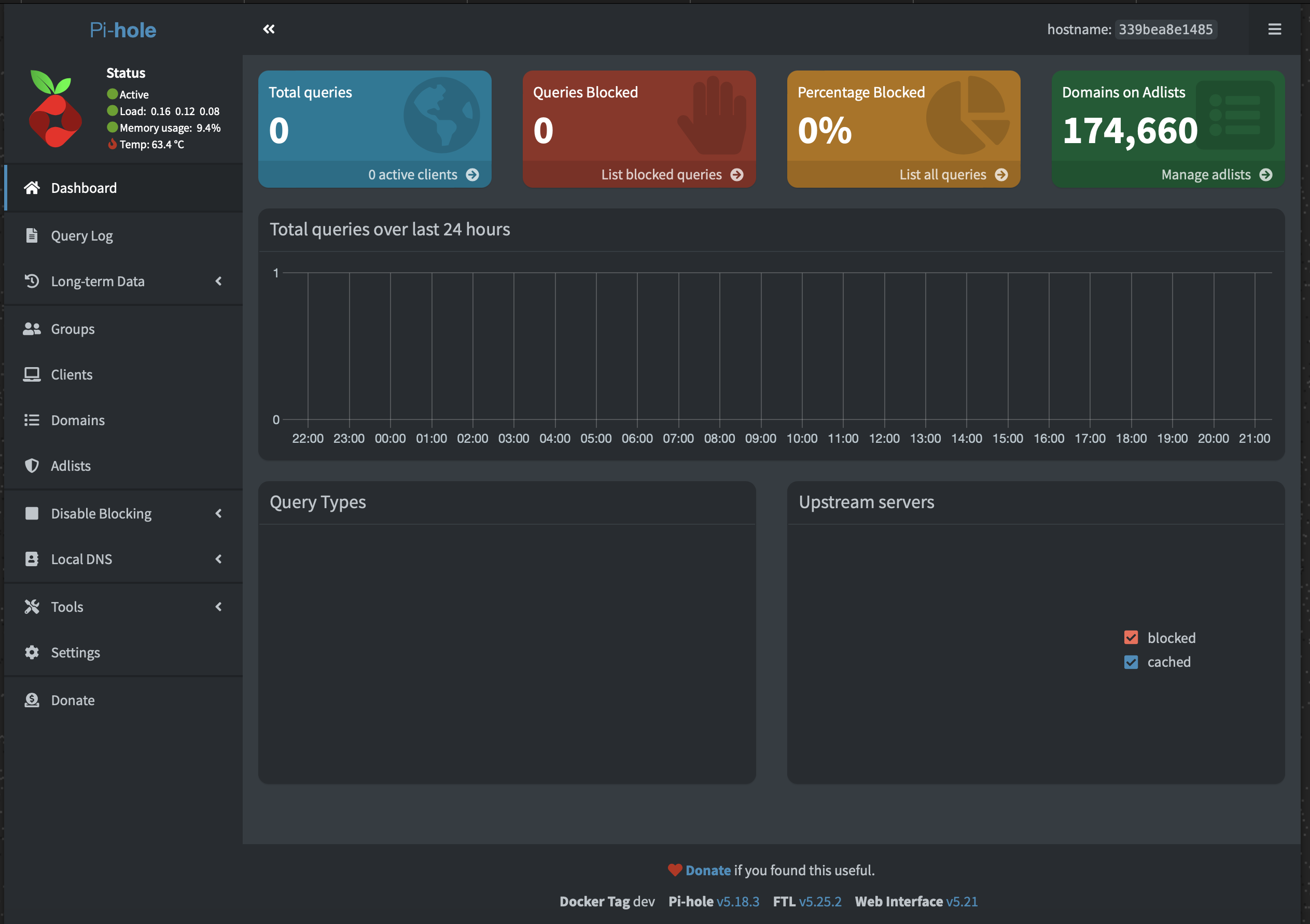
And voila!
Configure the DNS for the local network
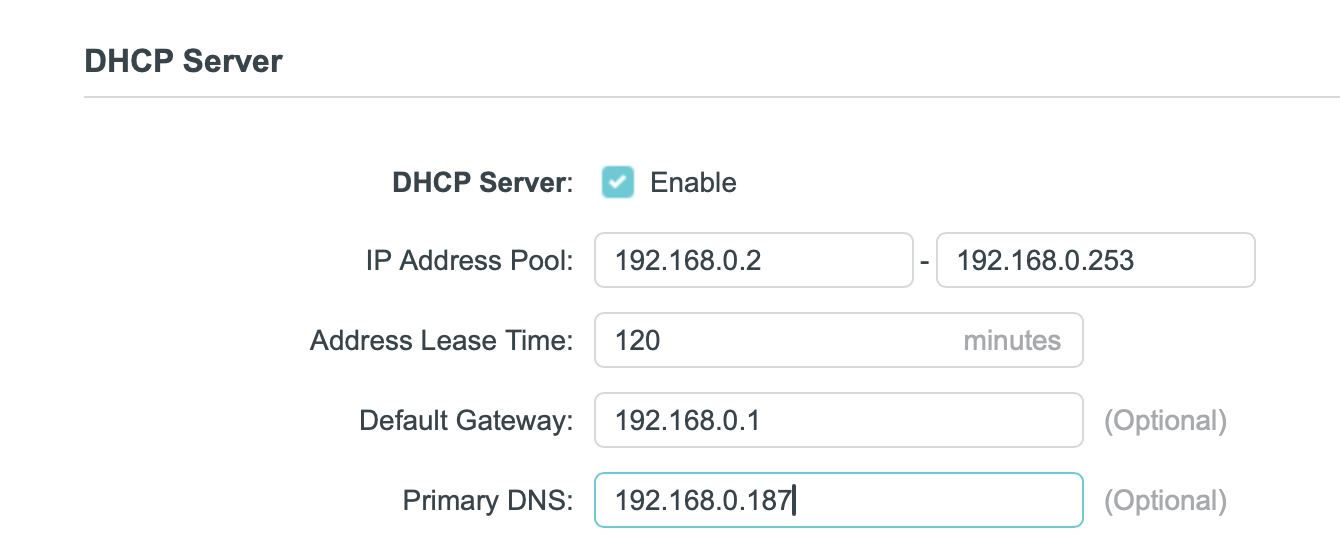
First thing I’ll do it access my routers DHCP config and point the DNS address to the Pi-Hole. It does not take many minutes until the first client start showing up to the party.
..aaaand Bob’s your uncle! We really don’t need to do much else unless we want some specific config. The Pi-hole is not starting to block sus domains. 
Set your own DNS records
You can create your own DNS records for local access, yay! I want to easily use SSH/HTTP etc. without statically adding rows to /etc/hosts for each new server.
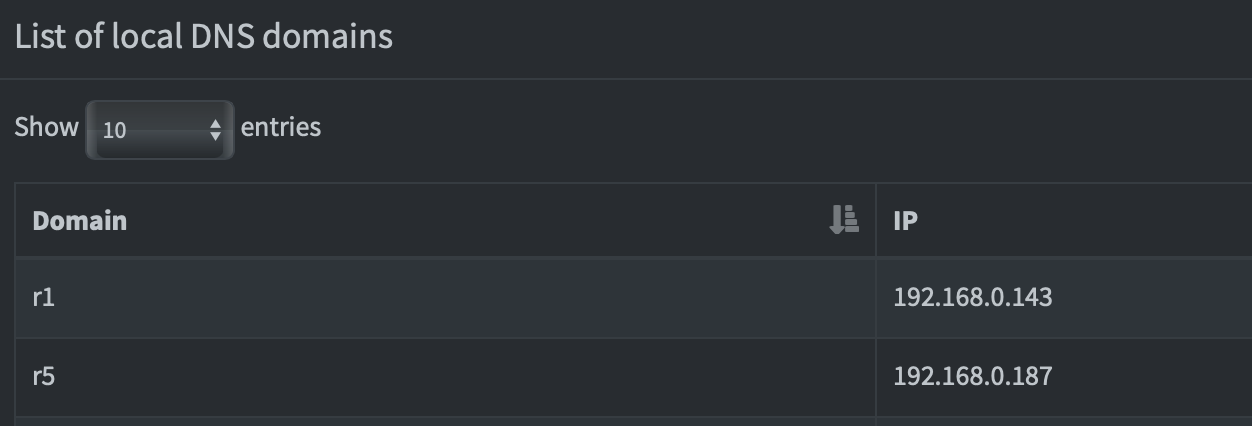
$ dig +short r1 @192.168.0.187
192.168.0.143
Groups
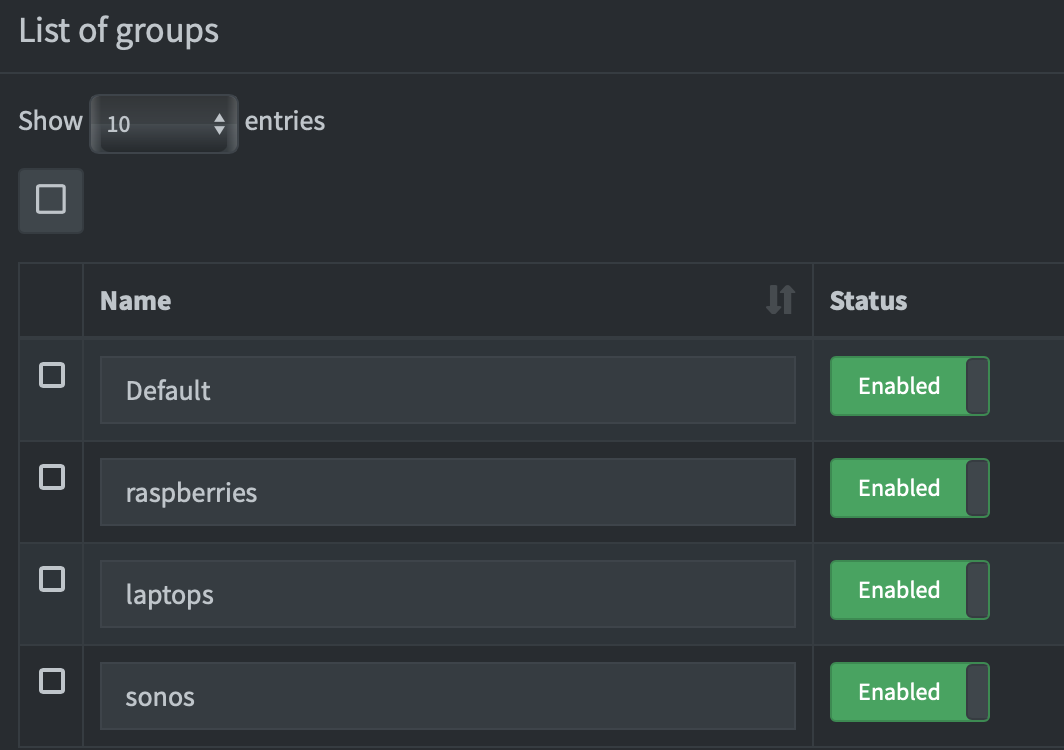
Group can help us keep track of clients and policies.
Adlists to block
There are a lot of list to start exploring on Github. Here we can configure different list for different groups, like doing heavy restrction from the personal devices, while allowing Sonos unlimited access. There is also a good article looking at the “best” list.
Since the default list contains around 175 000 domains, we will leave it for now.
Results
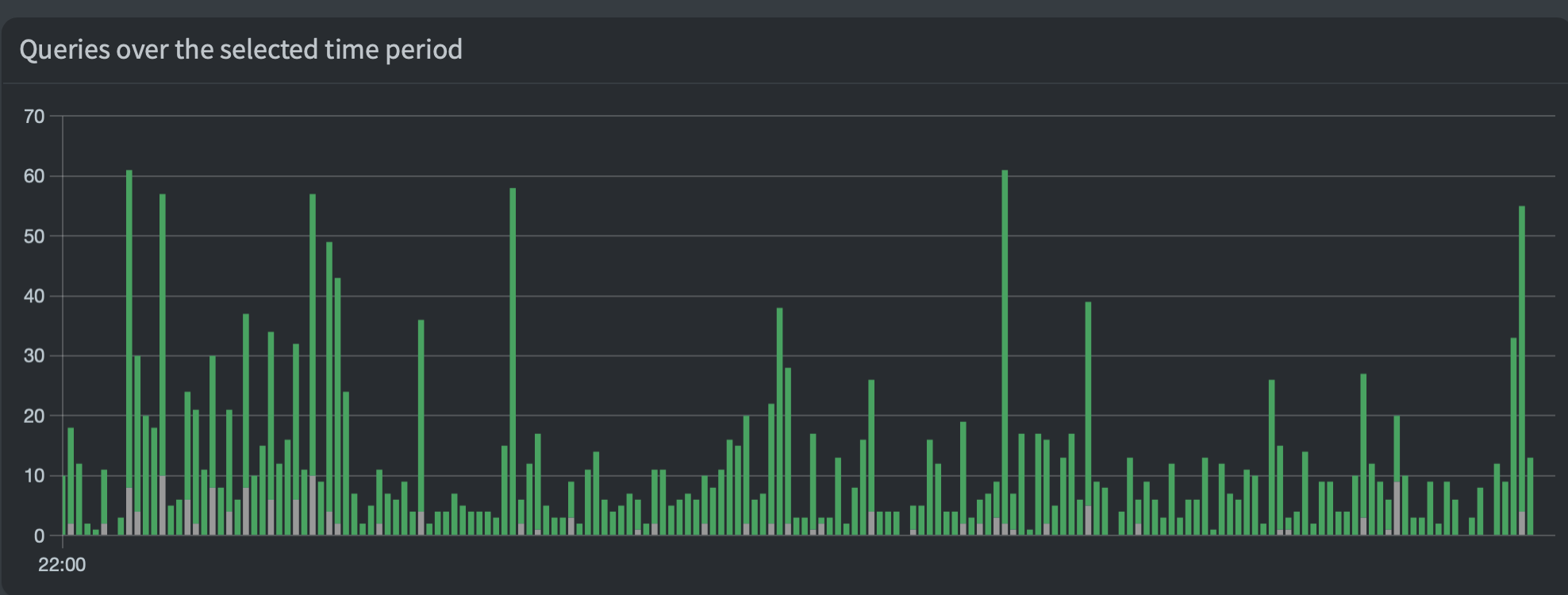
After only an hour, there are many request blocked, mainly related to iCloud and generic ads. Lovely!